computerTranslate_238459874_400.jpg

Tip of the Week: Translating a Gmail Message
computerTranslate_238459874_400.jpg

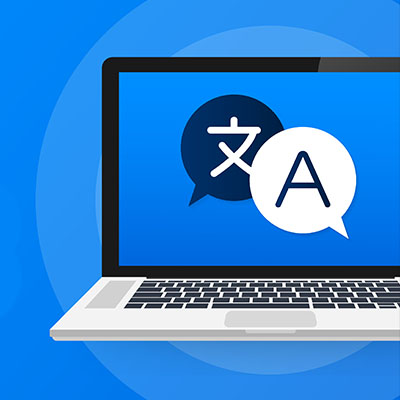
There are times when you might receive an email written in another language. Even if it’s unlikely, it helps to be able to translate a message for the rare time when you might receive one, particularly if your organization occasionally conducts business beyond your country’s borders. Let’s go over how you can use Gmail’s built-in translation functionality.

We should start by saying that we doubt the translation function will ever be 100% guaranteed accurate, but it should do well enough to give you an idea of what the other person has to say. If that’s all you need, then this tool might be just for you. Otherwise, consider a more comprehensive solution.

Translate Your Email in Gmail

First, you’ll see that the moment you receive an email that seems to be written in another language, you’ll see the translation open at the top of the page. If you see this button, you can translate the message into your preferred language using the Translate button. Click it and it will run the translation right away.

Now, if you don’t see the translation button, you’ll have to tweak some settings. Tap the three-dot menu for the message and find the translate Message menu. You’ll see this open up the Translate bar. Select the language from the drop-down list, or have Gmail detect the language on its own. Once you do, you can click on the Translate Message option to complete it. You can also revert it to the original language in the same way.

If you want to just turn on automatic translation, you can do it pretty easily. This option should be on the right side of the screen after you have translated your message, along with the language you have selected. You can disable automatic translations in the same way.

We hope you got some value out of today’s blog. Be sure to subscribe to learn more!

GoogleSheetsIcon_410430723_400.jpg

A Brief Overview of Google Workspace

GoogleSheetsIcon_410430723_400.jpg

Productivity suites are a dime a dozen, with Microsoft Office being perhaps the most well-known. However, there are plenty of other options out there, such as Google Workspace. How does Google Workspace hold up as a solution for productivity compared to its competition? Let’s take a look!

First, we should mention that Google Drive and Google Workspace provide a similar, if slimmed down, experience on just about any compatible device. There are also collaboration features built right into the software and anytime-anywhere access, and it’s all thanks to the cloud-based nature of these tools.

Google Docs

There can be no denying that Microsoft Word is the more functional solution of the two word processors, but for most businesses, Google Docs’ user-friendly interface will more than suffice. Docs features all of the tools that you might need for your word processing needs, and Google is adding new functionality all the time. Longtime users of Word might still prefer to use it over its competition, though.

Google Sheets

In much the same way Docs is a simplified version of Word, you’ll find that Google Sheets is similar to Microsoft Excel in a lot of ways. It retains much of the functionality, so you can expect a similar experience, but it’s more minimalistic compared to Excel. Anyone who has tried to use Excel for more than simple spreadsheet functionality might appreciate the simplicity that Sheets provides.

Google Slides

Google Slides continues the trend of offering similar experiences and functionality to Microsoft PowerPoint, but in the Google Workspace suite. While it doesn’t boast as dynamic features as its Office counterpart, its simplicity and ease-of-use should serve the same purpose.

Google Forms

You can use Google Forms to create surveys. You can use these forms to build surveys, create quizzes to test the knowledge of participants, or to collect information from users. It’s one of the more interesting features of Google Workspace.

Other Notable Google Applications

There are various other Google applications you might be able to leverage to your advantage, including Google Drawings (diagram creation software), Google My Maps (map and location tracking software), Google Sites (a wiki and web-page creation tool), Google Apps Script (scripting platform to create other add-ons for your Google Apps), and Google Jamboard (an interactive whiteboard platform).

Google Workspace might not be for everyone, but that’s why you have us to contact if you want to know more about it. We can help you make an educated decision about your business’ productivity suite. To learn more, reach out to us at 810.230.9455.

chatIcon_408959394_400.jpg

Tip of the Week: Handy Shortcuts in Google Chat
chatIcon_408959394_400.jpg

Google Chat, a worthy successor to Google Hangouts, is a great tool for users that can help them be more productive throughout the day, but did you know that you might be missing out on a ton of functionality by forgoing some of these keyboard shortcuts? Let’s go over some of the most helpful ones and how you can use them to get more out of this tool.

Access a Shortcut Cheat Sheet

If there is one shortcut you walk away from this blog with, we want it to be this one. To pull up a keyboard shortcut list, all you have to do is press the ? key with no conversation selected. It will bring up a list for you to reference.

Quickly Switch Your Lines of Communication

If you want to hop around the interface without taking your hands off the keyboard, you can use this keyboard shortcut. Jump from one space or conversation to the next by pressing Ctrl + K. This will open a box, providing you with options to start a group conversation, browse or create a new space, review message requests, or start a dialogue with one of your existing contacts.

Edit a Sent Message

If you send a message a little too soon, you can make a change to it after the fact by selecting the up arrow on your message. Once the message is selected, you can make any necessary edits, then update the message.

Google Chats is a wonderful tool, so make sure you get the most out of it! NuTech Services can help you take full advantage of your technology solutions. To learn more, give us a call at 810.230.9455.

chromeBug_467122515_400.jpg

Are Chrome’s Zero-Day Threats Actually a Good Thing?
chromeBug_467122515_400.jpg

With Google Chrome being one of the most popular web browsers out there, it’s no surprise that threats want to target it and take advantage of its users. However, up until recently, there have not been very many zero-day threats associated with Chrome. Zero-day threats are attacks that have never been seen before, affecting a new and previously unknown vulnerability. We want to remind you that it’s not always a bad thing when vulnerabilities are discovered in a browser or web application—in fact, it can actually be indicative of good monitoring practices.

Google Chrome’s History with Zero-Day Threats

For some context, let’s examine Google Chrome’s history with these zero-day threats, or rather, lack thereof. From the years of 2015 to 2018, there were no zero-day exploits actively used against Google Chrome, but the numbers have since increased over time. 2020 saw 14 zero-day threats, half of which were used against Google Chrome. 2021 saw an even greater number, with Google Project Zero’s tracking system identifying 25 zero-day threats, 14 of which belonged to Google Chrome.

While this might seem like a problem at first glance, the fact that vulnerabilities were not discovered before does not mean that they didn’t exist between 2015-2018. All it means is that most of them are getting caught and fixed now instead of flying under the radar, and this is a good thing.

Why Are There More Zero-Day Threats Now?

Why do experts think that zero-day threats are being discovered more often in Chrome? The reasons, according to Adrian Taylor of Google Chrome’s Security Team, are as follows:

  • Greater transparency between browser developers: Google Project Zero gives developers 90 days to fix the vulnerability before disclosing it, so if not, the public will eventually learn of it.
  • The end of support for Adobe Flash Player: Adobe was a popular mode of attack, but it has since left hackers with their only option being to attack the browser directly.
  • An increase in bugs required to attack the browser: There are more layers to break through, so more bugs are required, leading to more vulnerabilities to discover.
  • Browsers are more complex: With more complexity comes more bugs, and web browsers are no exception to this rule.

You can apply this idea to your business’ security infrastructure, too. After all, if you are not currently suffering from security problems, that doesn’t mean they don’t exist. We recommend that you take a close look at your security infrastructure and ensure that you are doing all you can to keep your business safe.

Plus, you will need to make sure that you are appropriately patching your systems as threats are discovered. No software solution will be immune to threats, so you should be addressing vulnerabilities as they appear; it sure beats doing it after a data breach.

To this end, NuTech Services can help. To learn more, reach out to us at 810.230.9455.

326961313_share_400.jpg

Be Aware of This Upcoming Google Drive Link Sharing Concern

326961313_share_400.jpg

It is certainly important that you update your software and hardware with the latest patches and updates, but it is also important to keep in mind that while these patches and updates resolve certain issues, these updates can also create problems of their own. An upcoming update to Google Workspace is the perfect example of this.

What’s Going to Happen with Google Drive?

Professionals who use Google Workspace for collaboration should be familiar with the link-sharing feature that Drive provides. Basically, it lets you share documents you are working on via a link. These documents can have varying permissions depending on who you are sharing them with, giving you quite a bit of flexibility when it comes to collaborating with others. You just copy the link, share it, and get to work.

The previously mentioned update, however, complicates things a bit. For links generated before the updates, you might run into some complications.

Some Links Will Break

The long and short of it is that once these updates are applied, a resource key will be added to the URLs created when sharing a link. This will cause there to be an influx of new access requests for businesses to manage.

According to Google’s official support page, admins can choose how to apply this update until July 23. After July 26, end-users will start to receive notifications informing them that any files managed will be impacted by this new change. If admins allow it, users can choose how these updates apply to their files until September 13.

Need Help?

If you’re unsure of how this change will impact your business, let NuTech Services help you navigate this issue. We can help by providing comprehensive IT management tools for your business. To learn more about what we can do for your organization, reach out to us at 810.230.9455.

217849482_frustrated_mobile_400.jpg

Frustrated by Your Android Device Lately? A Bad Update Might be Why

217849482_frustrated_mobile_400.jpg

With a global market share of 71.9 percent, the Android operating system that Google provides is well and away the most utilized there is today. Despite the fact that different phone manufacturers will fiddle with the OS to fit into the devices they create, Android tends to be pretty stable—which is part of the reason why many users were surprised around March 22nd, 2021. This is when these users discovered that their applications were crashing incessantly.

This issue wasn’t constrained to a given application, either—numerous, otherwise unrelated applications began to persistently crash whenever the user attempted to start them up.

Gmail reportedly created issues amongst users, while others found themselves unable to do a Google search through their browser. Lastpass also became notorious for crashing during this time. Other applications remained unscathed with no apparent rhyme or reason. It wasn’t as though Google’s applications were specifically creating issues—applications of all kinds were crashing, and giving users no small amount of stress as a result.

The Cause of These Android App Crashes

The underlying cause of these issues was soon identified, and the news quickly spread on Twitter: a system application known as Android WebView had received a buggy update.

Powered by the Chrome browser, WebView is meant to give other applications the capability to reference web-related content. For a short time, the only recourse against these application crashes was to uninstall the updated version—but Google soon released a new update fixing the bug. In fact, some users missed the issue entirely, based simply on the timing of their device’s update checks.

This proves an important point, regardless: while updates are important and should always be seriously considered, they aren’t always perfect and can present some unforeseen flaws. This is something that should always be kept in mind when installing an update on either a work device or a personal device.

This is precisely why we follow a policy to always evaluate updates in a controlled environment—particularly when they pertain to mission critical apps. While it only took Google 12 hours or so to identify and mitigate the issue, it needs to be remembered that it was a particularly pressing one. There is no guarantee that all update-borne issues will be resolved so quickly, especially if one doesn’t affect as many people. The time you have to wait could extend from hours to full days, weeks, or even months.

Hence, why we always recommend that you test updates and patches before applying them to your business’ devices… just to be safe.

Don’t get us wrong: keeping your IT up-to-date is important. However, it is also important that you are still able to use it afterwards. NuTech Services is here to help businesses like yours with their critical IT management and maintenance. Reach out to us at 810.230.9455 to find out more about how we can help.

174935768_email_400.jpg

Tip of the Week: Rearranging Your Gmail Messages
174935768_email_400.jpg

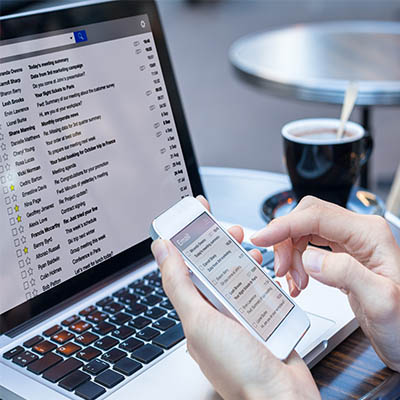
Email remains a popular tool in the business setting because of its undeniable usefulness in the office—but having said that, it can have its negative impacts on your productivity simply due to how much it can take to manage it appropriately. With so many messages that are crucial for you to keep track of coming through email, let’s go over a fancy trick to help you manage your messages in Gmail.

How Gmail Can Be Hacked to Control Your Message Order

Granted, there are a lot of tools and features that Gmail offers that are intended to help you manage just this. Just consider the filters and labels that can help your sort and contextualize the messages that come in.

While these are undoubtedly useful tools, they don’t always prevent messages from slipping through and being missed. However, with a simple “hack” of sorts, you can effectively reorder your messages so that your most urgent communications can be moved to the top and highlighted for added prominence.

Postponing Messages

Let’s say that you open your inbox to discover an important message that you don’t want to lose track of, but it’s also buried amongst other messages that aren’t nearly as pressing in the moment. Gmail offers a literal Snooze button that allows you to simplify this.

Don’t get too excited—this snooze button won’t let you catch a few extra winks at your desk. Instead, pressing that button allows you to resend yourself an email at a time you dictate so that it reappears at the top of your inbox. Here’s how to use it:

  • (On a desktop/laptop) selecting the box next to an email and clicking the clock-shaped icon at the top of the window.
  • (In the mobile app) tapping on the icon at its left, accessing the three-dot menu, and selecting Snooze.

You will then be prompted to set a time for the message to come back, in the form of the Pick date & time option. Once you’ve sent the message away, it will return at the time you’ve dictated and sit conveniently at the top of your inbox.

What other handy Gmail tricks do you know? Share them in the comments!

179946009_email_organization_400.jpeg

Tip of the Week: Keep Track of Your Priority Gmails
179946009_email_organization_400.jpeg

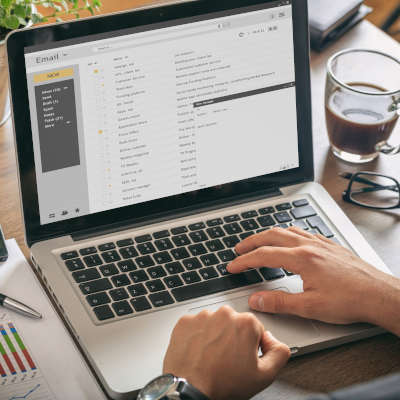
Email is undeniably a useful tool, but it can be a real drag on productivity and a hindrance to manage. Then again, there are some messages that you absolutely need to keep track of as they contain sensitive information. Gmail makes keeping messages under your thumb simple.

Email Can Be Frustrating

Gmail offers a lot of tools to help people organize their email. Features such as filters and labels make dealing with the loads of mail that come in easier, but still some messages might slip through the cracks. Wouldn’t it be useful if your email platform could give you a second chance to be alerted to a direct email? Users can now use a simple trick to reorder messages, so the most urgent ones appear at the top of your inbox. Let’s take you through it. 

Snoozing Your High-Priority Messages

So you’ve identified an important message that you want to return to after you deal with the mountain of other messages. Gmail allows you to do this with the use of the Snooze button.

Unfortunately, it doesn’t really work like your favorite snooze button on your alarm clock. Gmail’s snooze button is simply to resend yourself an email later so that the priority messages are at the top. Here’s how to access this feature:

  • (On a desktop/laptop) selecting the box next to it and clicking the clock-shaped icon at the top of the window.
  • (In the mobile app) tapping on the icon at its left, accessing the three-dot menu, and selecting Snooze.

Once this is done, a prompt will appear that will allow you to set when the message should return. The Pick date & time option allows you to set anytime after now for you to get the message back. Once you send this message, it will come back and sit at the top of your inbox in orange. It is extremely useful for the person who gets a lot of emails, but doesn’t get a lot of important emails. 

For more great tips and tricks, return to our blog regularly. 

203898730_safe_website_400.jpeg

Checking a Website’s Safety from Its Google Result

203898730_safe_website_400.jpeg

Google search is synonymous with searching the internet, but that hasn’t stopped them from constantly innovating the service. One of the most recent updates is to give users more context for the content that returns on search results. This works to protect users from potentially clicking on websites that could contain threats. Today, we discuss this innovation and how it will look to the end-user.

Google’s Page Widget

Google rolled out this feature on February 2nd, 2021. They now offer a widget that provides a look at a website before you click on it. You will begin to see three-dot menus appearing next to your search results. When accessed, it will give you the information that clicking on the link will take users to. 

The information includes a blurb about what the website links to, including Wikipedia information, but if that isn’t available it provides Google’s own analysis as the site was last indexed. It also provides information about the website’s security. 

This is what appears when you check the link for Facebook:

In this information, users can see that Google confirms that the website is secured, helps to protect data, and that the link was the result of the user’s search, and not an advertisement. 

As things progress, this utility should be able to help users do a better job of choosing websites that don’t put their data, or your organization’s data, at risk. For more great security information and best practices check back to our blog weekly.

213170870_password_400.jpg

Hey You… Update Your Google Password, Right Now!

213170870_password_400.jpg

If you haven’t taken the time to go through and update your passwords lately, particularly the one protecting your Google account, you should do so… despite it undeniably being a pain. After all, Google serves various purposes and is attached to many accounts for most. Considering the number of data breaches and other cybersecurity issues this potentially contributes to, you will want to ensure your Google account is properly locked down.

What Does a Google Account Involve?

Seeing as Google has grown to include far more than the original search engine, there are a lot of things that the average user has that involve Google in some way. Anyone who owns an Android smartphone, or surfs the Internet via the Chrome browser, or checks their email via Gmail certainly has a Google account, and this is but a small sample from a considerable list of items.

So, if a user’s Google account were to be compromised, a lot of data could potentially be exposed:

  • Google.com (for custom tailored search results)
  • Gmail
  • Google Drive
  • Google Docs/Sheets
  • Google Maps
  • Android
  • Google Workspace
  • Google Chrome
  • YouTube

Again, this is a brief sample. Chances are that—if it has something to do with Android, Chrome, or of course Google—it’ll be tied to your Google account.

Updating a Google Password

Fortunately, the process to change your Google password is quite simple:

  1. Visit https://accounts.google.com/. If you aren’t signed in already, log in with your email/phone number and password.
  2. Click Security on the left-hand side.
  3. Look for Signing in to Google. Click Password.
  4. Google will usually prompt you to provide your current password, and then have you input a new password.

REMINDER: While password security should always be a priority, the password you use to lock down your Google account absolutely must be as secure as you can make it. Use a unique password that is strong, without any personally identifiable information or other password shortcuts involved. Using a password manager can help make this easier, both by storing all your different passwords for you and assisting you in generating ones that are secure.

Once you have updated your Google password, you may have to log back in on some of your devices.

Adding Some Extra Security to Your Google Account

To really protect your Google account and the data it holds, it helps to take your security to the next level by enabling 2-Step Verification/2-Factor Authentication. This will help protect your account, even if your password was somehow stolen.

After changing your password, on the Google Account page:

  1. Click the Security option on the left-hand side of the page.
  2. Click 2-Step Verification.
  3. Google may prompt you to enter your password again, just to make sure it’s you.
  4. Depending on what Google already knows about you, this might go a few different ways—you’ll either be prompted to set up a phone number to get a text message or phone call, or Google might walk you through setting this up on your smartphone. Either way, follow the on-screen instructions.

You have a few options available to you in terms of the verification process. One of the more convenient is the option to be sent an SMS message with a secondary code required before your account can be accessed from a new device. For more security, there’s the Google prompt, which serves up a notification on your mobile to be tapped to confirm login, or Google’s own Authenticator app.

Fair warning—if your workplace uses Google Workspace, you might need the help of an administrator to enable 2-step verification. For more information on securing your accounts (or any other IT question you have), turn to the team at NuTech Services and reach out at 810.230.9455.

244341955_chrome_actions_400.jpg

Tip of the Week: Making Use of Chrome Actions

244341955_chrome_actions_400.jpg

As the most common Internet browser, Google Chrome is in a position where they always need to be coming up with new draws to maintain their hold on the market. Their latest efforts may help them to do so. Let’s take a moment and examine what Chrome is implementing, and how you can use it to your advantage.

Introducing Chrome Actions

Chrome Actions take the familiar address bar of the Chrome Internet browser and add some extra utility to it. Rather than specifying a webpage or network location to visit in the address bar (known as the “omnibar” to very few of us), Chrome now accepts very basic commands as input, and will follow these commands when they are entered.

For instance, opening a window in Incognito mode is as easy as simply typing “incognito” into the address bar.

As of yet, there are a few Chrome Actions that have been implemented:

  • Clear Browsing Data – type ‘delete history’, ‘clear cache ‘ or ‘wipe cookies’
  • Manage Payment Methods – type ‘edit credit card’ or ‘update card info’
  • Open Incognito Window – type ‘launch incognito mode‘ or ‘incognito’
  • Manage Passwords – type ‘edit passwords’ or ‘update credentials’
  • Update Chrome – type ‘update browser’ or ‘update google chrome’
  • Translate Page – type ‘ translate this’ or ‘ translate this page’

Of course, they come with the promise of more being added in future updates.

Is This Something You See Yourself Using?

Leave your thoughts in the comments and tell us why or why not. For more information and assistance pertaining to your business’ IT, give us a call at 810.230.9455.

223018647_security_update_400.jpg

Have You Applied the Recent Chrome Patches?

223018647_security_update_400.jpg

Being told by an IT provider how important it is for you to update your software is probably a bit like your grade school teacher telling you how important it is to do your homework: of course they’re going to say it, it’s their job to do so. However, we’re telling you what the Department of Homeland Security announced when they released a warning to update your Google Chrome web browser.

October saw five vulnerabilities patched in Chrome, with two of those vulnerabilities being classified as zero-day threats. A zero-day threat is an attack that is already being used by cybercriminals by the time security researchers identify it. With the head start that the zero-day threat gives them, these cybercriminals have a dangerous advantage.

To add to the issue, two of these zero-day threats were also identified as high severity attacks, one taking the form of a JavaScript engine phishing attack and the other in a corruption vulnerability in one of Chrome’s features. While further details are scarce, the Department of Homeland Security’s Cybersecurity and Infrastructure Agency (CISA) have warned us of their significance and their capability to assist an attacker in taking over an infected system.

Both threats have been spotted, so CISA is officially encouraging that all patches be applied, and updates made, to resolve these threats.

What Makes Updates So Important?

Let me ask you this: let’s say that your office’s front door would no longer lock securely. Would you leave it alone in the hopes that nobody would mess with it, or would you prioritize having the lock fixed?

This is the situation that business owners now find themselves in, and far too many of them simply hope that it won’t be a problem. Consider the fact that Google released a patch for one of these vulnerabilities via an update, but only half of users applied the update within a day.

Regardless of whether this is due to negligence or the possibility that the device they are using is simply outdated, this suggests that many companies are leaving their vulnerabilities exposed.

NuTech Services can help through our managed services, as we’ll ensure that your technology is patched and fixed appropriately. To learn more about our services, or to find out how else we can assist you in securing your business’ IT, reach out to us at 810.230.9455.

232748399_google_search_400.jpg

Tip of the Week: Keep Google Keep Working For You
232748399_google_search_400.jpg

There are a lot of Android apps that are good for productivity, but Google Keep offers a particularly significant advantage. Today we’ll take a brief look at Google Keep and tell you about some features that will help you use it proficiently.

Labels

Instead of categorizing your notes into folders and notebooks, Keep is organized by labels. You can create labels to find everything you have stored on a particular topic. Fortunately, it’s also easy to use, so in this tip I’ll show you how to use Google Keep to track all the important information you need to process and store.

Adding a new label to a note is as easy as selecting the Labels option in the lower right menu on the editing screen. You can also add a label by holding down the note from the main list and tapping the label icon or by including a hashtag at the start of your note. This allows you to check your note for the label you have added by tapping on the hamburger menu and selecting which labels you want to go through.

Reminders

Setting up reminders for various tasks and appointments is a very simple utility that Google Keep allows you to perform, assisting you in managing all your usual tasks. 

Let’s say you need to go to the bank or run some other errand during your lunch break, which starts at 12:30. Keep allows you to set a reminder for 12:27. Additionally, if you need to perform a task as soon as you get to work, you will be alerted as soon as you are on the premises.

The setting is simple enough and is available by pressing the icon that looks like a finger with a string tied to it. Keep also allows you to check your alarm settings by accessing the hamburger menu and selecting Reminders.

Checklists

Of course, many things you want to remember can involve several steps, but in these cases Keep’s checklist feature makes task generation much simpler.

You can quickly and easily create checklists and simple lists by tapping the Plus icon in the action bar. You can create a quick, simple checklist or use ones you’ve already made, with the capability to close and reopen line items by checking them off and unchecking them as needed.. 

Collaboration

Notes created in Keep can be shared with other people so that everyone can contribute, whether you’re developing a business strategy or keeping track of topics discussed during a meeting. After accessing the note to be shared, tap the lower-right menu icon and select Collaborator. You can then send the note to one of your Gmail contacts to invite them to edit and utilize your note. Any changes they make will be reflected whenever you access the tool.

Google Keep is a great tool for anyone looking to be more organized. Have you used Google Keep? What did you think of it? Leave us your thoughts in the comments section below.

323508379_camera_lens_google_400.jpg

Tip of the Week: What Google Lens Can Do

323508379_camera_lens_google_400.jpg

Not many Android users are aware of the Google Lens application, and the supplemented utility that it can bring to your device’s camera. Let’s fix that by going over what Google Lens is, and how you can use it to your advantage.

Explaining Google Lens

Downloadable from the Google Play Store, Google Lens is a utility app that incorporates artificial intelligence to make your smartphone’s capability to take and store images even more useful. With Google Lens, your phone can identify the elements in an image and give the user in-depth and contextual options based on it. Let’s say you wanted to find out what the flowers were that someone had planted outside their house. Using Google Lens, you could point your camera at the flowers and identify them that way.

Now, just consider how this could be applied to the modern, mobile workplace:

Copy and Paste Real-World Text

The ability to copy and then paste content is one of the most often-used functionalities in the office, so why not bring it to the physical world (sort of)? Using Google Lens, you can capture text with your camera from any media just as though it was content on a website. Simply press on the desired text to select it, press the Copy button at the bottom of the screen, and there you are. This text can then be shared directly to the clipboard of any computer with the same Google account actively logged in.

Extract Contact Information from a Business Card

While business cards are a great way to build business relationships at networking events, they don’t exactly fit in with most of today’s business environment. Lens can fix that by capturing the details printed on the card and giving the user various options. Whether you want to call the contact shared on the card, visit a website printed on it, or send a quick text or email message, Lens makes it simple to do so.

Create a Calendar Event

While calendar events are a great way to keep one’s schedule organized, helping one fulfill their obligations, they can become arduous to input into a mobile device. Google Lens can automate that process, pulling the necessary information from a flyer, an appointment card, or any other media and giving the user the option to Create calendar event.

Of course, this has been but a brief sampling of Google Lens’ capabilities. We encourage you to download it and see how much it helps you. If you’ve used Google Lens before, let us know how it worked out for you in the comments!

111704888_browser_chrome_extension_security_400.jpg

Evaluating the Security of Your Chrome Extensions
111704888_browser_chrome_extension_security_400.jpg

Google Chrome is currently used by 69 percent of global desktop Internet users, as of July of 2020. With such a large amount of people using Chrome, its security becomes even more important… which makes it all the worse that many people are unaware of the permissions that some of its extensions claim.

Let’s go over how you can review how much of your data these Chrome extensions can access, and how you can adjust these permissions more to your liking.

Fair warning: This will naturally require you to change a few settings, so don’t be afraid to reach out to your IT provider to confirm these changes are okay to make and for assistance in doing so.

What Permissions Have Extensions Been Granted?

Here’s the thing—the extensions that you have installed into the Chrome browser, much like the applications that can be installed on a mobile device, will require some of your browsing data in order to function. Many extensions and applications, however, take claim of far greater permissions than their functionality requires in practice. In fact, a recent analysis of extension permissions shows that over a third of all extensions do this!

Here are a few steps that allow you to evaluate your Chrome extension permissions and help you to avoid granting them too much access in the future.

Step One: Evaluate Your Current Permissions

First, you will want to find out how many of your installed extensions currently ask for too much. To do so, you’ll need to type chrome:extensions into the address bar and go through the Details of each extension that appears on the page.

There, you’ll find a line annotated with Site access. There are various access levels that an extension can have once it is installed, including no access at all. What this means is that your web activity isn’t accessible by the extension at all. The other levels include:

  • On click – This means that an extension can access and alter data in your active tab when you click on the extension’s shortcut.
  • On specific sites – This means that only certain websites allow the extension to access and alter what is presented in the browser.
  • On all sites – This means that there are no restrictions on an extension, allowing it to access and alter data at any time.

Certain types of extensions may need this kind of access, while others will not. It is up to you to determine what access is appropriate for each to need, based on what they use to operate.

Step Two: Adjusting Your Current Permissions

If an extension doesn’t need the level of permissions that it demands, do everything you can to address this by adjusting its settings. If the extension allows this, these permissions can be adjusted by simply selecting your preferred option under Site access. Whenever possible, following a principle of least privilege is the safest bet for your data.

Step Three: Keep Permissions in Mind Moving Forward

Once your extensions’ access permissions are in check, you don’t want to just fall back into your old habits with any new extensions you add. Remember, these extensions prompt you with a brief dialog box explaining its default accessibility settings… pay attention to them. Whenever you activate an extension moving forward you need to be sure to keep these permissions in mind. It may be the difference between installing an extension or finding another option.

NuTech Services can help you manage all your business technology through our proactive managed services and support. To find out more about our services, reach out to our team by calling 810.230.9455.

169963245_search_400.jpg

Tip of the Week: Specifying Your Google Queries

169963245_search_400.jpg

Searching for something on Google seems stunningly self-explanatory: type in what you’re looking for, press Enter, and like magic, it appears. However, there is a lot more that you can do, if you know how to use Google’s full capabilities. Let’s go over how these capabilities can be harnessed to your advantage as you perform your next search.

Improving Your Google Queries

If you want to tell Google to omit certain potential results from your search, you can use the hyphen/subtraction mark to define what you don’t want considered.

For example, if you were in the market for improved seating for your workplace, you could search for computer chairs and eliminate any designed for gaming purposes by searching for computer chair -gaming.

()

Adding a parenthetical allows you to set a prerequisite for your search results. Basically, by including a term in parenthesis, you’re instructing Google to only return results for the rest of the search if they relate to that term.

So, if you were specifically looking for IT services around Michigan, you could type in (IT services) Michigan.

Of course, by being on our blog, you’ve pretty much skipped that step, already!

site:

Let’s say that you were looking for something that you were confident that you could find on a specific website. Perhaps you had even found it before but hadn’t been able to locate it again since. Adding the site tag into your Google search instructs Google to zero in on a particular website as it looks for your search term.

So, let’s say you wanted to know more about business continuity. To find that information, you could input business continuity site: www.nutechology.com. Google will promptly deliver the links you’re looking for.

filetype:

Maybe you’re looking for a specific kind of file, like a JPEG or a PDF. Inputting your search terms and adding filetype:jpeg or filetype:pdf will only produce results that feature the designated file format.

intext:

Have you ever encountered one of those moments where you can remember an exact quote from somewhere, but you can’t remember where you read it to save your life? Google offers a feature that can work with that. Searching for intext:, followed by that particular phrase, will instruct Google to look at in-page text to find it.

Which of these Google tricks were new to you? Are there any that you see being particularly useful? Make sure you subscribe to our blog for more handy tips, and for any of your specific IT support and service needs, give NuTech Services a call at 810.230.9455.

341185664_covid19_tracking_app_phone_400.jpg

Nope, You Haven’t Been Hacked By Google and Apple’s COVID-19 App
341185664_covid19_tracking_app_phone_400.jpg

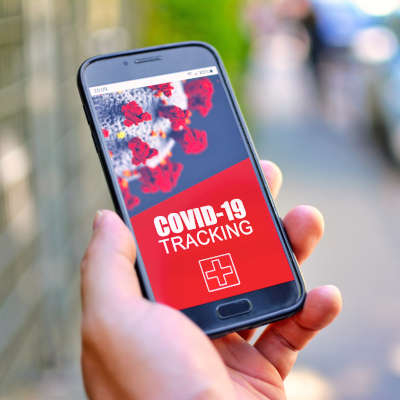
Google and Apple have recently started an initiative with local governments to try and help prevent the increased spread of COVID-19. Basically, this app would notify people if there were positive COVID-19 test results in their area. While this does bring up some major privacy concerns, we wanted to discuss something else today: the prevalence of false warnings that have already been forced onto mobile devices. Let’s dig in.

There’s been a consistent pattern that has emerged with popular software applications: a major update or other change is made, and uproar on social media ensues.

Just look at what happened when the Android platform’s Facebook application began requesting access to the user’s smartphone camera several years ago now. While this was required so that Facebook’s newly released native photo-taking capabilities could be embraced, there was still a lot said about it on social media.

Don’t get us wrong—many of the changes made in technology can be concerning, especially where it involves a user’s privacy. However, there is usually a ton of misinformation muddying the waters. Again, we’re not saying that you can always trust giant tech companies and their data collection policies… quite the opposite, in fact. You’re right to feel concerned at times and should be exercising the control over their collection of your data that you have a right to.

Having said that, we couldn’t help but notice an extreme response to the news of Apple and Google’s new COVID-19 contact tracing application framework.

So, Did Google or Apple Install a COVID-19 Tracking App on My Phone?

Nope.

Neither Google or Apple added an application to your mobile device without your knowledge or consent. What Google and Apple did was collaborate to develop an application framework, which can now be used by app developers as they create COVID-19 tracking apps.

However, due to sensationalism on social media, a lot of people are concerned. Just look at this post that has been making the rounds on Facebook:

“**VERY IMPORTANT ALERT!***

A COVID-19 sensor has been secretly installed into every phone. Apparently, when everyone was having “phone disruption” over the weekend, they were adding COVID-19 Tracker [SIC] to our phones!

If you have an Android phone, go under settings, then look for google settings and you will find it installed there.

If you are using an iPhone, go under settings, privacy, then health. It is there but not yet functional.

The App can notify you if you’ve been near someone who has been reported having COVID-19.”

There’s a lot of misleading information to unpack here. First, neither Google nor Apple secretly installed a new “sensor” (especially since we’re talking about a software update, not a hardware update).

This software update was simply a setting to enable the COVID-19 Exposure Notification system that the two platforms are preparing. When this system has its official applications developed, users will not only have to install the application and activate it, but also confirm that they want to participate with Google or Apple.

So, this update simply provides a unified framework for local governments and the health industry to use as they create their COVID-19 applications, while offering users the choice of whether they want to participate.

So No, This is NOT a COVID-19 Tracking App

Seriously, unless you consciously selected the option to “Install,” your mobile device isn’t going to start tracking you and those close to you to identify anyone with COVID-19. In fact, if you follow that Facebook post’s instructions to your settings, you’ll see that you have to A: install a participating application or B: finish setting up a participating application before your notifications can even be activated.

In a rare joint statement from Apple and Google, they go on record to say, “What we’ve built is not an app—rather public agencies will incorporate the API into their own apps that people install.”

To clarify further, an API is an Application Programming Interface. Think of it as the foundation of an application. By teaming up, Apple and Google have laid the foundation for others to build their own applications upon.

As a bonus, this also makes it easier for people to opt out. Unfortunately, if too many people decide not to use the system, it may not be reliable enough to work at all.

What Do We Know About these Tracking Apps?

Well, the system itself is extremely new, so responsibility for the official applications will fall to state and local governments.

The platform that Google and Apple co-developed is built to be decentralized, which will help to make it more secure. Basically, when a user opts to use one of these apps, their phone is assigned a random ID and it is then shared with other phones within the range of a Bluetooth connection. Each phone then stores an anonymous roster of the other IDs it has been in proximity to.

So, when someone is diagnosed with COVID-19, they would then manually share that with the contact tracing app. Then, with their permission, all the IDs that their phone has stored over the prior two weeks would be uploaded and those users would be sent a notification of their potential exposure. Your location isn’t shared, nobody’s identity is shared, not even Google or Apple will get this information. In addition to all this, that random ID is changed every 10 to 20 minutes, and the apps are not allowed to use your location or to track it in the background.

As a result, these apps are safe to use with complete anonymity, and to avoid opting in, you just wouldn’t install any COVID-19 tracking apps, official or not.

Uninstalling the COVID-19 Exposure Notification

Okay, since we know that some will want to ask this question, we felt we needed to address it.

In short, you shouldn’t because it isn’t an app, it is an API. As such, it can’t just be uninstalled. It is now part of the Android and iOS operating systems and is pushed to devices through security updates.

If you were to do some Internet snooping, you could find some walkthroughs on the Internet that take you through how to roll back your phone and other such processes, but that only leaves your device exposed to other threats. Again, there is nothing to uninstall, and neglecting future security updates is a terrible idea.

The API is nothing to worry about. It is nothing more than a setting, and one that is deactivated by default. If you really are worried, both Apple and Google have confirmed that not installing, or uninstalling, a COVID-19 Exposure Notification app is enough to avoid participation.

And again, since we can’t stress this enough:

DO NOT FOLLOW ANY INSTRUCTIONS ONLINE THAT WALK YOU THROUGH ROLLING BACK YOUR PHONE AND OPTING OUT OF SECURITY UPDATES. 

If you are that serious about your privacy, it just doesn’t make sense to expose that privacy to greater risk.

In our professional opinion, understanding the technology used to create the COVID-19 Exposure Notification system, every effort has been made to ensure the security and anonymity of its users. Keep in mind, there are also healthcare regulations to comply with as well, and our clients will know how stringent they are where data privacy is concerned.

The decision whether or not to use the COVID-19 Exposure Notification system falls to you, but you can rest assured that both Google and Apple have done everything right to keep their system safe, private, and secure.

Please, to learn more about these technologies, don’t hesitate to give us a call.

132856638_bookmarking_400.jpg

Tip of the Week: Bookmarking Your Google Documents

132856638_bookmarking_400.jpg

Productivity is always an important consideration when it comes to your business’ processes. That’s why, for this week’s tip, we’re going over how to boost your productivity by adding some of your G Suite documents into your bookmarks bar.

If you use the selection of tools that Google offers as a part of its G Suite offering, you’ve probably found a few documents that you find yourself repeatedly returning to on a regular basis. Rather than navigating to them via the appropriate folder hierarchy in Google Drive, there is a simple shortcut that you can take advantage of in Google Chrome: creating a bookmark that navigates directly to the appropriate page.

This is a very simple process:

  • Access your Google Drive and open the document you want to save to your bookmarks.
  • In the Address Bar, you’ll see a star icon at the right side. Click it.
  • A small drop-down menu will appear where you can change the name of your shortcuts, and select the “Folder” that it will appear in. Select Bookmarks bar.
  • Click Done, and then the document will appear in the bookmarks bar.

There you have it, you now have a quick shortcut to one of your most-used documents. For more handy shortcuts and tips (along with some other topics), subscribe to our blog!

118204795_chrome_colored_tabs_400.jpg

Chrome Adds Color Coded Tabs and We’re So Thankful
118204795_chrome_colored_tabs_400.jpg

Google Chrome is adding a cool feature over the next week or so (it may already have been released for you). The next feature is sure to make a big difference for some and will be non-descript for others. Let’s unpack colorful tabs in Google Chrome.

Adding More Organization Into Your Chrome Browser

Admit it, you have a tendency to use too many browser tabs. At any given time, you may have 5-10-20 browser tabs open. If you use more than one screen, it could be more. Way more. Most users use their Chrome browser for so much of your online life that you hardly pay attention. Then you wonder why your PC is running slow. The truth is people use a lot of browser tabs, and they are better off for it. 

Google, knowing their users’ behavior better than most companies has come up with a new feature that will allow you to assign a certain color to a browser tab and then group them together with like-colored tabs. This feature will be rolled out to users in this update

The update should be coming this week, but it will hit everyone at different times (Google is deliberate about their updates). You may already have the feature in your Chrome browser. When it does come it will be as a default browser update, and will be a change for all Chrome users. All you will need to do is right-click on tabs, group them together, and assign a color.

Are you a tab-hoarder, or a tab-minimalist? Is this feature going to help you? Leave your comments below and be sure to return to our blog for more great information about technology.

216680738_google_search_400.jpg

Google Search Practices That Have Purpose

216680738_google_search_400.jpg

You could say that Google is an extremely popular website, but even that is an understatement. It’s the most visited website in the world, with 3.5 billion search queries being processed every day, and over 1.2 trillion searches a year. With so many people using Google, it’s no wonder that it’s such an advertising conglomerate, but the fact remains that this can come at the user’s detriment more often than not.

Google.com
There are few resources out there that are as valuable as Google’s website. Even the act of “googling” something has become a verb. Granted, “googling” a query might not yield the results the user is expecting, which can lead to frustration. By effectively using search commands, you can make any Google search more accurate, saving time better spent actually using the plethora of knowledge you have at your fingertips.

Tip #1: Use the Tabs
Google has built-in search functionality for images, videos, news, and so much more. There are tabs for images, news, videos, maps, shopping, books, flights, and finance. You can use each of these to narrow down the results you get when you make a specific query.

#2: Use Quotes
Even if you type in what you’re looking for, Google will sometimes misconstrue what you’re looking for as something else. If you’re looking for a specific phrase, you can use quotes around it to find exactly what you’re looking for.

Example: “happy days”

The results will be the term or phrase exactly as it’s typed.

#3: Use a Hyphen to Exclude Words
Think of the hyphen as the “minus” sign of Google searches. If you have a word that you’d rather omit from a search, place a hyphen in front of it.

Example: scale -weight

By removing the topic of one of the homonyms from the equation, you will get more targeted and accurate results.

#4: Use a Colon to Search Specific Sites
If you know that what you’re searching for is found on a specific website, you can limit the search to that site with a colon.

Example: Virtualization site:azure.microsoft.com

In the above example, you can also use a specific keyword to include it in your search.

#5: Search Locally
Google can determine your location, giving you a lot of power to find local businesses, restaurants, institutions, you name it. Just type it into Google.

Example: Laundromats nearby.

Just make sure you have your location services on if mobile. Otherwise, the search engine will use your Internet connection’s IP address to figure out what’s close to you.

What are some of your favorite ways to use Google? Let us know in the comments.